Cloud Storage Backup & Drive
- 4.2
- Rating
- 1.00M
- Installs
- Free
- Price

 Analysis by App-foxy
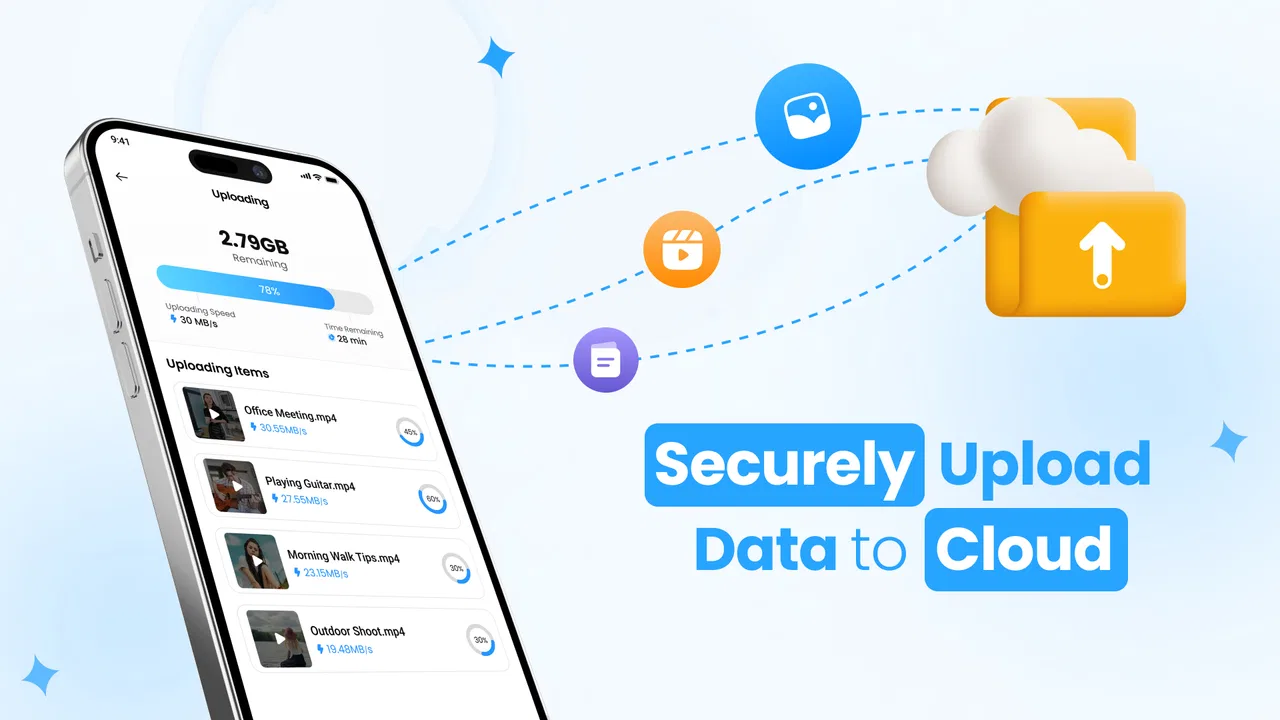
Cloud Storage Backup & Drive is the kind of productivity app I would look at when my phone starts becoming the only place where important memories and practical information live. Its purpose is straightforward: keep files, photos, videos, and contacts backed up to cloud storage instead of leaving everything dependent on one device. After using it, my impression is that its value comes less from flashy extras and more from making a basic safety habit easier to maintain.
The app is free to install and is aimed at everyone, which makes the first step approachable for casual users as well as people who regularly handle documents or media on an Android phone. It comes from Daily Utility Apps, has passed the one-million-install mark, and holds a 4.5 average from roughly ten thousand ratings. Those figures suggest that the concept is easy for many people to understand, although popularity alone is not a substitute for checking how comfortable you are with its access requests and account choices.
I see it as a practical backup utility rather than a complete replacement for every cloud platform. If you want a simple place to protect selected personal content, it deserves attention. If you need advanced collaboration, detailed file-management rules, or a clearly defined professional storage environment, a more established full-service drive may suit you better.
You May Also Like

 Blood Strike: 2.5 Anniversary
Blood Strike’s Loadouts Turn Every Drop Into a Tactical Gamble
A close look at Blood Strike’s custom loadouts: how fast access to signature weapons reshapes its battle royale rhythm, rewards preparation, and narrows the gap between fights.

 Pandora - Music & Podcasts
Pandora’s Music Is Easy to Start, but Harder to Recover
Pandora’s strength is its low-effort path from a seed to a station. Its weak spot is how much confidence it asks you to place in connection, setup, and quiet recovery.

 8 Ball Pool
 Is Built on Rivalries, Rematches, and Routine
A close look at the rivalries, rematches, shared routines, and unanswered safety questions that turn a quick pool match into a persistent mobile community.

 Samsung Music
’s Quiet Strength Is Playing What You Already Own
Its reach comes less from spectacle than from dependable access to a personal library. That simplicity is both the app’s strongest retention engine and its ceiling.

 AccuWeather: Weather Radar
AccuWeather Review: A Quick, Clear Forecast for Everyday Decisions
For everyday plans, the best forecast is the one you can understand quickly. AccuWeather makes rain timing, radar, and local conditions easy to act on, with a few trade-offs.

 Hill Climb Racing
Why Hill Climb Racing Still Turns Crashes Into One More Run
A tiny car, a bumpy hill and one more upgrade: Hill Climb Racing keeps resurfacing because its simple chaos makes every near-miss feel personal.
More From Our News Desk



What using the app feels like in everyday life
The most convincing use case is an ordinary one. Imagine taking photos during a family event, recording several videos, and saving a few documents on your phone before traveling home. A damaged phone, accidental deletion, or a lost device could turn those items into a serious problem. A backup app gives you a second location, so the phone is no longer the only copy you have.
That benefit is especially clear with contacts. Many people remember to copy photos but forget how disruptive it is to lose an address book. Having contacts included in the app’s stated backup purpose makes it useful for someone changing phones, preparing for a repair, or trying to protect information that is difficult to recreate manually.
I also found the app easier to understand when I treated it as a routine rather than an emergency rescue tool. The best time to decide what belongs in the cloud is before a device fails. I would begin with irreplaceable photos, essential videos, contacts, and documents that would take real effort to rebuild. I would not automatically send every temporary download or duplicate image, because unnecessary clutter makes later browsing and recovery less pleasant.
That selective mindset is one of the less obvious advantages of a focused backup tool. Cloud storage can quickly become a dumping ground when the user never revisits it. Before starting a large backup, I would remove screenshots, repeated images, old installation files, and videos that have no lasting value. This does not make the service itself faster, but it makes the resulting cloud collection more useful when you actually need to find something.
Who will get the most from it
I would recommend trying it first if you are not confident that your phone’s important content is protected elsewhere. It can also make sense for families where one person handles device maintenance, for users who frequently switch phones, and for anyone who wants a separate place for personal media without manually copying folders to a computer.
The app’s Everyone content rating also fits its everyday purpose. It is not presented as a specialist business system or a technical administration tool. That matters because a beginner usually needs a clear starting point more than a long list of complicated controls. The trade-off is that a simpler experience may not satisfy someone who wants detailed automation, granular sharing permissions, or a sophisticated team workspace.
I would be more cautious about recommending it as the only copy of highly sensitive material. A cloud backup is helpful, but a sensible personal plan can include another copy on a computer or external drive for the files that would be impossible to replace. That is not a criticism unique to this app; it is a basic backup principle. One remote location is safer than one phone, but two independent copies are safer still.
Trust starts with what the app asks you to do
For a backup application, trust is not just about the interface. The important questions arise when it asks to access photos, videos, files, or contacts. I would read each permission prompt instead of approving everything automatically. The app’s purpose explains why those categories may be relevant, but the right choice still depends on what I want to protect.
This is where I would slow down during setup. If I only want to safeguard pictures, I would avoid granting broader access than necessary when the operating system offers a narrower option. If I want contacts included, I would expect that category to be involved. The principle is simple: give access that matches the backup job, not access by habit.
I would also review the app’s visible account and privacy screens before uploading personal material. Look for the account currently in use, the content selected for backup, and any controls for removing items or disconnecting access. I do not treat a clean design as proof that every data practice is ideal. Instead, I use the controls I can see and make sure the choices match my comfort level.
That approach is particularly important because photos, videos, and contacts can reveal much more than their file names. A photo may include family members, a location, or a private document in the background. A contact list can expose relationships and work connections. The app is useful precisely because it handles valuable information, so I would not rush through the first permission screen just to reach the main interface.
Handling sensitive content without losing control
My preferred workflow would be to start small. I would back up a limited group of non-sensitive photos and a few ordinary files, then inspect how the app presents them before adding more. This gives me a chance to understand the navigation, confirm which account is active, and see whether the organization feels manageable. It also prevents one rushed setup from filling the cloud with material I did not mean to include.
For contacts, I would be even more deliberate. I would first make sure the phone’s own contact list is tidy, because backing up duplicates and outdated entries only preserves the mess. I would remove obsolete records locally where appropriate, then create the backup. That small preparation step makes a future restoration more useful and avoids confusing several versions of the same person.
Videos deserve a different decision. They consume more storage than ordinary documents, and many are temporary recordings that I never watch again. I would prioritize meaningful family moments, work-related clips, or material that would be difficult to recreate. For everything else, I would consider whether keeping it on the phone is worth using cloud space. The app can support a backup habit, but it cannot decide which memories matter to me.
Documents also benefit from a simple naming routine. Before uploading, I would rename vague files such as scans or downloads with a recognizable subject and month. That is an independent habit rather than a special feature, yet it becomes valuable when the backup is used under pressure. A cloud copy that cannot be identified quickly is technically safe but practically frustrating.
Account choices and everyday user agency
I like backup tools more when they let me make understandable choices instead of hiding everything behind a single automatic switch. With this app, I would pay attention to what is selected, which account receives the content, and how I can remove a backup later. Those checks should become part of the routine whenever I change phones or sign in with a different account.
Changing devices is a realistic moment when mistakes happen. Before wiping an old phone, I would open the backup app on the new device and verify that the content I care about is available there. I would not assume that seeing a completion message means every item I intended to protect is immediately easy to retrieve. A short test with a few photos, one document, and contacts can reveal whether my setup is correct before the old device is erased.
I would also avoid using a shared or borrowed account for personal backups. The account is part of the security boundary, and the wrong account can make content difficult to find or expose it to another person. This is a basic but often overlooked detail: the best backup process still fails if the user does not know where the copy is being stored.
The app is free, which lowers the barrier to testing it, but in-app purchases range from very small amounts to several hundred dollars per item. I would therefore inspect any upgrade or storage-related screen carefully before confirming a purchase. A free download does not mean every possible capacity or option is free. I would choose only after checking what the payment changes and whether it fits my actual backup needs.
That pricing range is also a reason not to treat the app as an automatic long-term commitment. I would begin with the free experience, estimate how quickly my photos and videos grow, and decide later whether paying makes sense. Someone with a large media library may prefer comparing total storage costs with a familiar cloud provider before moving everything.
Where it differs from familiar alternatives
Compared with manually copying files to a computer, the app is more convenient for people who do not remember to connect their phone regularly. A computer copy can be reassuring because it is physically under your control, but it depends on discipline, cables, available disk space, and a working computer. Cloud backup removes some of that friction, although it introduces account and online-storage considerations.
Compared with a general-purpose drive service, this app appears more focused on the basic protection task. That can be an advantage for a user who wants less complexity. I would not choose it over a mature collaboration platform if my daily work involves shared folders, document editing, detailed team permissions, or a broad office workflow. Those services are often better when the cloud is a workspace rather than a safety copy.
It can also be different from a phone-maker’s built-in backup system. Built-in tools may feel more integrated with the device, while a separate app can be attractive when I want a backup option that is not tied as closely to one phone brand. The better choice depends on whether convenience, portability, storage terms, or account familiarity matters most to me.
One useful distinction is recovery purpose. If I want to restore an entire phone after a failure, I would check whether the platform I use covers settings, messages, and application state. Cloud Storage Backup & Drive is most clearly suited to the content categories it presents: files, photos, videos, and contacts. I would not assume that backing up those items is the same as creating a complete image of the phone.
Practical friction I would plan for
Backup quality depends on routine conditions that are easy to overlook. Large videos may take patience, and a phone with limited connectivity or battery may not be the ideal place to begin a large upload. I would start with the phone charged, use a trusted connection, and avoid making the first full backup immediately before leaving home. That way, I have time to check the results rather than discovering an incomplete collection when I need it.
Storage organization is another likely source of friction. The more content I add, the more important it becomes to review what is already there. Duplicate photos can appear after repeated phone changes, and old files may remain useful only in theory. I would schedule an occasional cleanup, keeping irreplaceable material while removing obvious temporary content. A backup should reduce worry, not become another digital drawer that nobody opens.
I would also keep expectations realistic about speed and availability. Cloud content depends on the account and the connection used to reach it. If I am traveling somewhere with poor access, I would not assume that a remote copy is as immediately available as a file stored on the phone. For documents needed during a trip, I would keep a local copy as well.
The current version is 1.7.0 and supports Android 8.0 or later. That makes the app relevant to many devices still in everyday use, but I would check compatibility before relying on it with an older phone. I would also keep the app and operating system updated through normal channels, since backup software handles information that deserves careful maintenance.
My cautious verdict after weighing the trade-offs
My overall view is positive, with an important condition: I would use Cloud Storage Backup & Drive as one part of a backup plan, not as an excuse to stop thinking about copies, accounts, and permissions. Its focus on files, photos, videos, and contacts makes the purpose easy to grasp, and the free starting point gives cautious users room to test the workflow before spending money.
Its strongest quality is practical reassurance without requiring a complicated technical setup. I can imagine recommending it to a friend who keeps everything on one phone and needs a manageable first step. I would tell that friend to begin with a small, deliberate backup, verify the active account, review access requests, and test recovery before deleting anything from the original device.
I would not recommend it as the first choice for a business team, a person seeking advanced file collaboration, or anyone who needs a clearly defined full-device image. Those users may be better served by a platform designed around shared workspaces, comprehensive device backup, or more detailed administrative controls. I would also advise anyone with unusually sensitive content to read the visible privacy and account information carefully and keep another independent copy.
For ordinary personal protection, though, the app has a sensible role. Daily Utility Apps has built a productivity tool around a problem most phone owners understand only after something goes wrong. If you approach it carefully, keep your content organized, and treat the purchase screens and permissions as decisions rather than formalities, it can turn cloud backup from an occasional chore into a useful part of your phone routine.
FAQs for Cloud Storage Backup & Drive
01What features does Cloud Storage Backup & Drive offer?
Cloud Storage Backup & Drive provides users with a range of features including automatic file backup, file synchronization across devices, and secure sharing options. It supports a variety of file types and offers generous storage plans to suit different needs. Additionally, it includes robust security measures such as encryption and two-factor authentication to protect user data.
02Is Cloud Storage Backup & Drive secure for storing sensitive information?
Yes, Cloud Storage Backup & Drive implements strong security protocols to safeguard your data. It uses end-to-end encryption to ensure that your files are protected both during transit and at rest. The app also supports two-factor authentication, adding an extra layer of security to your account. Regular security updates help keep your data safe from potential threats.
03How much does Cloud Storage Backup & Drive cost?
Cloud Storage Backup & Drive offers a variety of pricing tiers to accommodate different user needs. It typically starts with a free plan offering limited storage, which is great for personal use. Paid plans are available for more extensive storage needs, priced competitively and often include additional features such as priority support and increased storage limits.
04Can I access my files offline with Cloud Storage Backup & Drive?
Yes, Cloud Storage Backup & Drive allows you to access certain files offline. You can mark files you need to work on while offline, and they will be downloaded to your device. Once you reconnect to the internet, any changes made offline will automatically sync with your cloud storage, ensuring you always have the latest version.
05Does Cloud Storage Backup & Drive support multiple devices?
Absolutely, Cloud Storage Backup & Drive is designed to work seamlessly across multiple devices. Whether you are using a smartphone, tablet, or computer, you can easily access and manage your files. The app syncs your data in real-time, ensuring that you have the most updated files no matter which device you’re using.
Pros
- Easy-to-use interface for all users.
- Seamless cross-platform synchronization.
- Generous free storage options available.
- Robust file versioning and recovery.
- Strong encryption ensures data security.
Cons
- Limited offline access to files.
- Additional features require subscription.
- File upload speeds can vary.
- Occasional sync delays reported.
- No advanced collaboration tools.

Cloud Storage Backup & Drive
Gallery